

Highlights
- ROG Xbox Ally delivers an actual “pick up and play” console-style handheld experience.
- Xbox and ASUS simplify Windows 11 gaming with full-screen Xbox mode.
- Built-in shortcuts, Game Bar, and Command Center reduce PC friction.
- The unified library supports Game Pass, cloud gaming, and PC storefronts.
- Offline play prep and fast setup make it ideal for travel gaming.
It’s a bet on what Xbox and ASUS have clearly touted for the ROG Xbox Ally, X: the “pick up and play” experience. A newly revised Xbox Wire article outlines the steps new owners can take to start playing immediately without the typical Windows handheld hiccups. According to a freshly updated Xbox Wire guide, the article takes the form of checklists on topics such as shortcut keys, Game Bar options, preparing to play without Wi-Fi, and the essential settings new players should adjust.
The guide walks players through shortcuts, Xbox full-screen mode, offline play prep, and system optimizations, making the ROG Xbox Ally feel less like a mini PC and more like a true Xbox handheld.
A Windows handheld with an Xbox-first feel
The ROG Xbox Ally series integrates the flexibility of Windows 11 with a console-friendly interface. Once complete, the setup process launches into an “immersive Xbox full-screen experience” intended for use with one’s hands. All of this is combined with traditional Xbox elements such as the Game Bar, an easy-to-navigate Library, and access to settings without having to deal with desktop-related tiny interface components.
Hardware-wise, ASUS markets the tablet as a “portable gaming station” featuring a 7-inch 1080p display and a 120 Hz refresh rate. These characteristics help ensure fast UI animations and high frame rates, resulting in smoother gameplay on a small display.
First setup scenario: not missing fingerprint reader
One of Xbox’s recommendations is to enable the fingerprint reader during initial setup. On a handheld, you’ll make biometric login a dozen times a week, and this feature is literally “instant” login vs. “why do you need Windows login again?” According to this guide, finish the setup so that you can launch directly into the Xbox interface.
Console-Like Navigation: Shortcuts, Game Bar, and Task Switching
Xbox notices a couple of ways in which the ROG Xbox Ally feels less like a mini PC and more like a console:
- Multiple input options: You can input through d-pads, sticks, face buttons, and/or touch.
- Xbox Game Bar access: Xbox button + right bumper or swipe in from the left edge.
- Quick task switching: Press and hold the Xbox button or swipe up to open the Task Switcher to quickly switch between launchers, Discord, browsers, and games.
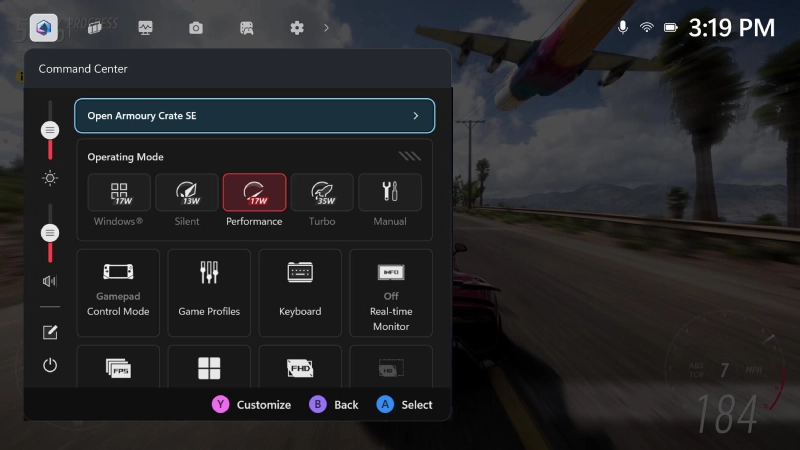
Another significant quality-of-life enhancement is the integration with the ASUS Command Center in the Game Bar, which offers quick switches and device functionality through an often-accessible overlay with direct access to Armoury Crate SE for further customization.
Meet Gaming Copilot (Beta) on ROG Xbox Ally
Among the highlighted features mentioned in the commendation is Gaming Copilot (Beta), which is described as “your personal sidekick for recommendations, tips, and insights.”
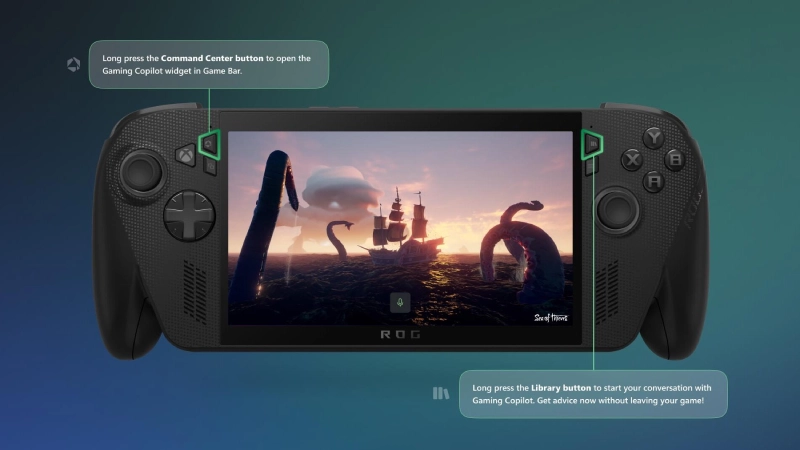
On the ROG Xbox Ally, you can access this feature through Game Bar by long-pressing the Command Center button. After setting it up, Xbox asserts that you can invoke it right in the middle of a gaming session, even for viewing achievements or battle strategies against the boss, by long-pressing the Library button.
One library for Game Pass, owned titles, cloud, and PC storefronts
“Play what you want, where you want” – this is essentially the heart of the SEO rationale for ROG Xbox Ally. It is a message that is immediately understandable and accessible. There is a clear link between them.
The best way to do this, according to Xbox, is to use what it calls the dedicated Library button, which sits above the right thumbstick, to filter through your entire collection of owned games, Game Pass, and Cloud Gaming content. Nice touch: You can apply multiple filters, such as “Owned” and “Installable,” to find games that are native to that device.
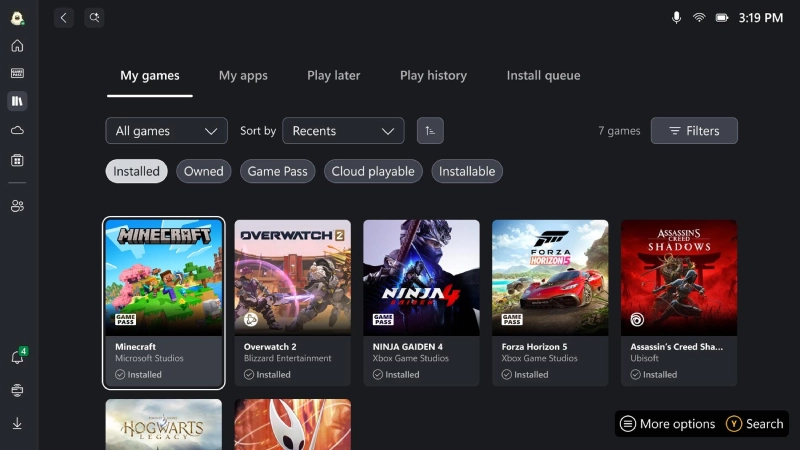
This guide also points to an integrated gaming library that can access games from “leading PC storefronts.” You will install your favorite launcher from the library’s My Apps tab, and if not, you can access it directly from the Edge Internet browser.
Offline play: prep before you travel
Handhelds are for commutes, planes, and hotel Wi-Fi that’s barely there. Xbox pro tip: You can test offline play before you leave, download updates/DLCs, and ensure you are logged in before certain single-player games are locked out of last-minute authentication. And if you’re a flyer, you can switch into airplane mode to conserve some battery life.
Personalize the experience: accessibility, controllers, docking, lighting
The guide also embraces personalization, for comfort as well as for varying play styles:
- Accessibility: These options, including visual, cognitive, and sensory settings, are located under the “Settings > Accessibility” section in the Xbox experience, while the rest are found under Armoury Crate SEO.
- External Controllers: Using Game Bar settings, either via Bluetooth or by the pop-up prompt that may have been missed, connect an Xbox Wireless Controller.
- Bonus in the box: Xbox points out a compact paperboard stand hidden away in the box lid that comes in handy for tabletop charging.
- Dock to a bigger screen: Connect to a monitor/TV or use a USB-C dock; “Second Screen Only” is recommended for best resolution and refresh rate.
- Lighting: The joystick ring lights enable adjustments to the Armoury Crate SE for improved performance during dark environments or red-eye flights.
Keep Your ROG Xbox Ally Updated: Two Key Places to Check
Lastly, Xbox emphasizes the fact that, as every Windows handheld user knows, the “out-of-the-box experience is only the beginning.” Among the list of recently added features is Default Game Profiles (Preview), which “automatically adjusts the balance between FPS and power consumption for the first 40 supported games,” as well as Game Save Sync Indicators, which provide “real-time cloud feedback.”
If you want the latest news, Xbox recommends the following:
- Windows Update (via Game Bar → Settings → More Settings → Windows Settings → Windows Update)
- Armoury Crate SE Update Center (Command Center → Open Armoury Crate SE → Update Center → Check for Updates)
What this means for those who just got an ROG Xbox Ally is that it only takes 10 minutes to set up and learn shortcuts to get a seamless, console-style gaming experience every time you take it out and play.
Bottom Line
The ROG Xbox Ally proves that Windows handheld gaming doesn’t have to feel complicated. With Xbox’s streamlined setup, built-in shortcuts, and unified game library, new owners can be up and running in under 10 minutes.
For anyone who wants console simplicity with PC power, the ROG Xbox Ally delivers exactly what Xbox and ASUS promised: an actual pick-up-and-play handheld gaming experience.