
Kiara hunched over her laptop in a café, tabs multiplying until each one became too tiny to recognize. A syllabus PDF needed to stay open, but so did a pile of lecture notes and YouTube videos—and a Google Notebook LLM tab sat minimized in the corner like a guilty secret. The constant switching was endless and maddening.
Then Chrome Split View changed the whole rhythm. She snapped two tabs side-by-side—the PDF on one side, notes and videos on the other—and finally stopped playing tab roulette just to stay on track.
Then Chrome’s update hit. The split view snapped them side-by-side. No more frenzy. Just flow.
Is Google Chrome’s Split View & PDF Editor Actually Worth Using?
The latest trio, Chrome Split View, PDF annotations, and Save to Google Drive, promises smoother days in the browser, where most of us live now. But does it deliver real gains, or just polish familiar frustrations?
Early users say it cuts “tab fatigue,” yet browser habits die hard.
These are tweaks born from customer complaints: juggling windows, annotating docs without apps, and lost downloads. Google claims testers, like teachers grading papers, devs coding with docs, are already hooked.
Top Benefits of New Chrome Split View & PDF Editing Tools
- How Chrome’s Built-In Split View Eliminates Tab Overload
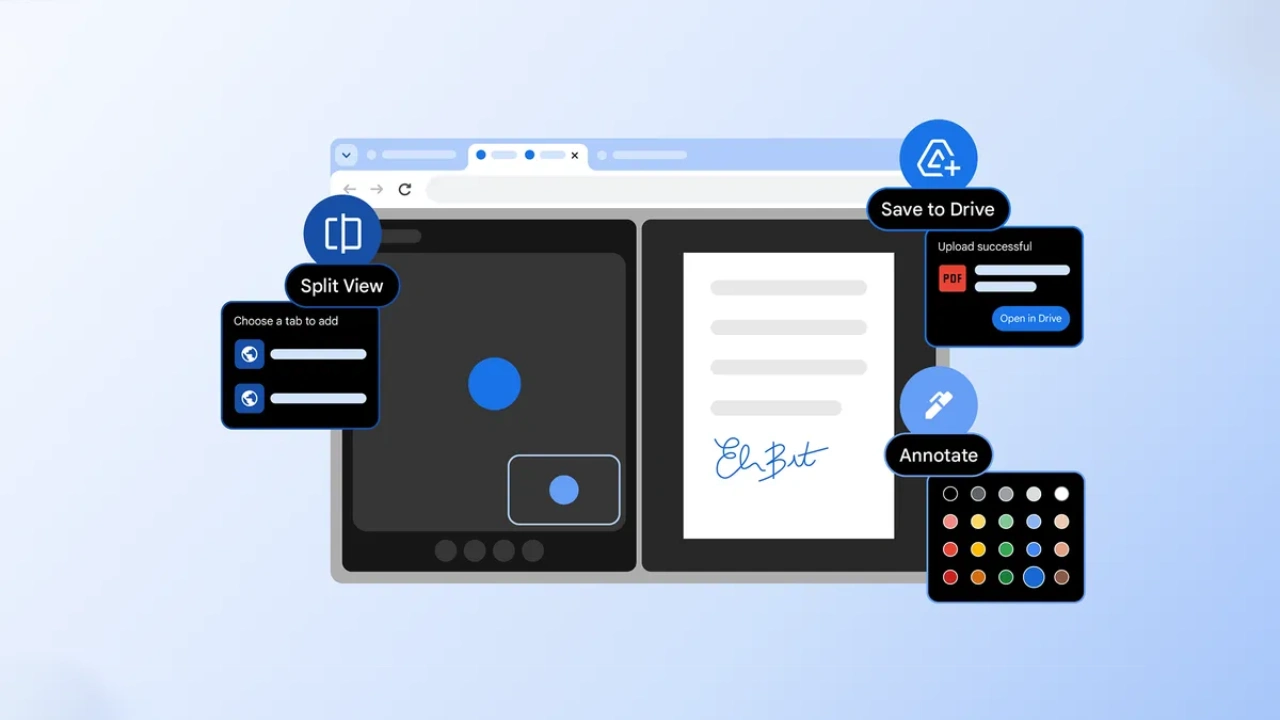
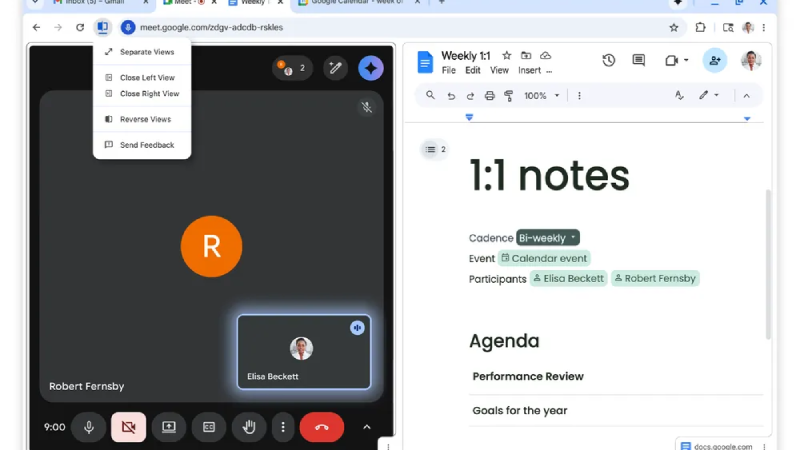
- Right-click a tab, pick “Add to New Split View,” and drag another beside it.
- Resize with a slider.
- A toolbar icon lets you reverse, close, or separate panes.
Testers grade papers next to student work or code while eyeing docs—no extra windows.
It’s intuitive, no extensions needed.
In real use, it shines for reference-heavy tasks, like comparing prices or following recipes while shopping online.
- Chrome’s Native PDF Editor: Highlight, Annotate & Sign Without Leaving the Browser
Chrome’s PDF viewer now highlights text, adds notes, and even adds signatures—right in the browser.
- No downloads, no third-party apps. Review reports, mark syllabi, or note personal files seamlessly.
- Syncs across devices too.
- Quick for spotting key sections in dense docs, saving minutes per session.
- One-Click Google Drive Saving: How Chrome Organizes Your Files Automatically
Do you have to work with a PDF?
Save straight to Google Drive’s “Saved from Chrome” folder. No local clutter, no manual uploads. Searchable, backed up, accessible anywhere, ideal for scattered files.
Organizes chaos effortlessly, especially for multi-device users.
- How Chrome’s New Features Improve Daily Workflow Efficiency
Combined, they streamline browser life: less app-switching, better focus. Early feedback highlights classroom use, video note-taking, and dev workflows.
What Was Previous vs What’s New
| Feature | Previous Chrome Experience | New Chrome Update Experience |
| Tab Management | Multiple separate windows or constant tab switching | Built-in Chrome Split View inside one window |
| PDF Handling | Download → Open in external app → Edit → Re-upload | Highlight, annotate, and sign directly in Chrome |
| Saving PDFs | Manual download → Upload to Drive | One-click “Save to Google Drive” |
| Multitasking | Requires extensions or OS-level window snapping | Native browser split view |
| Storage Organization | Files saved locally, cluttered Downloads folder | Auto-saved to “Saved from Chrome” in Drive |
| Workflow Speed | Frequent app switching | All tasks handled inside Chrome |
| Device Syncing | Manual file transfers | Instant sync via Google account |
Who Benefits Most from Chrome’s Productivity Update?
Why Students Benefit from Chrome’s Split View & PDF Annotation Tools
Chrome Split View is a win for students cramming exams—keep notes open beside lecture videos, and mark up syllabi with quick annotations without printing. It’s a free update with practically zero learning curve: update Chrome and get moving. Perfect for tight budgets.

Best Free Productivity Upgrade for Budget Users in 2026
No cost beyond the existing Chrome. Value skyrockets for tab-jugglers on basic laptops.
Hidden perk: fewer extensions mean lighter resource use and are kinder to older hardware.
How Content Creators Can Use Chrome Split Screen for Faster Research
Chrome Split View speeds up research for scripting and idea generation—keep sources side-by-side, annotate inspo PDFs on the fly, and save everything to Drive for later. It’s effortless for side-hustle creators building portfolios, following tutorials, or tightening their content scripts without breaking flow.
Productivity Boost for Small Business Owners Using Chrome
With Chrome Split View, invoice reviews stay side-by-side across client portals, and annotated contracts can be saved securely in one place. It’s a practical workflow for solo operators—no enterprise fees, just a clean setup that fits bootstrappers tracking expenses.
How Families Can Use Chrome’s PDF Tools for School & Home Organization
With Chrome Split View, parents can keep recipes and shopping lists open side-by-side, while kids annotate school PDFs that auto-save to the family Drive. Everything stays accessible on shared devices, making basic productivity feel simple—without the overwhelm.
Limitations of Chrome Split View & PDF Features
- Split View resizes clunkily on tiny screens; annotations lack advanced edits like shapes.
- Drive saves need a Google account—privacy watchers pause.
- In long-term cases, browsers bloat when unused features accumulate.
Some feel it underwhelms power users needing full apps. Disappointment will hit you if you are expecting mobile parity or AI smarts.
Is Chrome’s Productivity Update Really Free? Cost vs Value Analysis
- Zero direct cost—Chrome is free.
- Features roll via updates.
- Stays browser-bound.
- Affords everyone with internet; value aligns if you’re tab-heavy, less so for app loyalists.
Should You Upgrade Chrome? Key Questions to Ask Before Switching
- Do you spend 4+ hours daily in Chrome tabs?
- Annoyed by PDF app switches or lost downloads?
- Need quick multi-device access without paid storage?
- Comfortable with Google ecosystem, or wary of data ties?
- Will basic splits/annotations cover 80% of your needs?
- Tested the update yet? Does it click intuitively?
Worth it if browser grind wears you down, as it saves time for real life.
Take Action Now: Update Chrome Today
With Chrome Split View, parents can keep recipes open beside shopping lists, while kids annotate school PDFs that are automatically saved to the family Drive. Everything stays accessible across shared devices, making everyday tasks simpler and quietly helping build basic productivity habits without feeling overwhelming.